January 3, 2025 · 14 mins read
Santosh Kumar

Google Pay (GPay) is almost ubiquitous in the mobile payment market of the world.1. With millions of users in India, it holds potential as a utility for day-to-day transactions such as bill settlement, money transfer, and shopping. Nevertheless, such as any other platform for payment, security has been and will continue to be of the utmost importance in order not to lose money and to keep personal information secure.
CTA_BANNER
The UPI PIN (Unified Payments Interface Personal Identification Number) security infrastructure that GPay has on which it depends is the security strength of the UPI PIN of the GPay user. For all of those transactions, like wire money transfers, bill payments, or even checks on your bank statement, this PIN (personal identification number) is required; therefore, when you think that your UPI PIN has been stolen or perhaps for another reason that you wish to change it, then you should also be aware of how to do it.
In this article, we will show you the steps to update your UPI PIN on GPay in a straightforward manner. No matter how much or little experience you have, this tutorial will allow you to follow the procedure.
Before we go on with the procedure to reestablish the Pendagia UPI PIN in Google Pay, understanding what a UPI PIN is is beneficial.
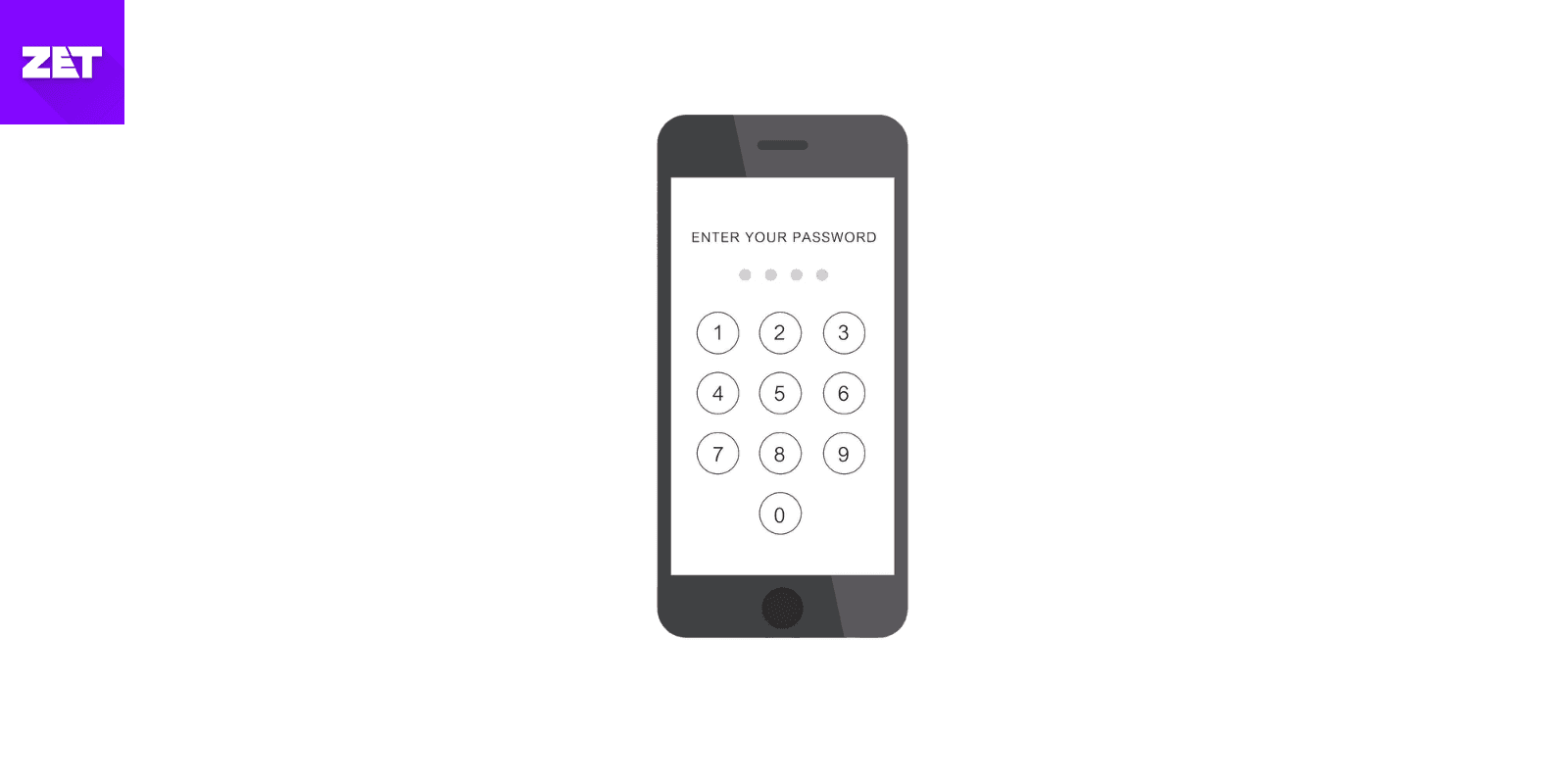
UPI PIN is a 4- or 6-digit-long number you enter while synchronizing your account with GPayment (or any other payment application supporting UPI). It can also be a password or security code for transaction authorization within your application. Each time you transfer funds, pay a bill, or make any purchase via GPay, you will be prompted to key in your UPI PIN to verify the transaction.
Since the UPI PIN is directly embedded into your account, it will be everything to maintain safe custody of and to cherish it very much. When you accidentally forget or suspect that your PIN has been corrupted, you should update your PIN as soon as possible so that your account does not get hacked.
Read More:: What is UPI Reference Number?
There are several reasons why you might want to update your GPay UPI PIN:
Security Concerns: If, based on the existing UPI PIN criteria, the UPI PIN has been compromised and your UPI PIN is known to someone else, then it should urgently be changed to avoid any further unauthorized transactions.
Forgotten PIN: If you’ve forgotten your UPI PIN and can’t perform any transactions, changing the PIN is the only solution.
Routine Update: Certain users particularly want to change their UPI PIN regularly to avoid the risk of having it guessed or broken by a hacker.
Bank Account Issues: There is also the situation in which a request to reset the PIN is dictated to the user by a problem with his/her linked bank account.
Lost/Changed Phone Number: If you’ve changed your phone number and haven’t updated it in GPay, it could lead to complications with your PIN. Recreating the PIN after updating contact information is a responsible procedure.
Read More:: How to Change UPI PIN in Google Pay
Since we know now why the UPI PIN should be changed, in this section, we will describe how the GPay UPI PIN should be changed. Whether you’re using an Android or iOS device, the process is simple and similar across both platforms.
Step 1: Open the Google Pay app
Uncouple your smartphone and open the Google Pay app. When you do not have the app installed, you will need to get it from the Google Play Store (for people using Android phones) or the Apple App Store (for people using an iPhone).
Make sure that your app is using the latest and greatest version to avoid errors in automating processes.
Step 2: Access Your Profile
Once the app opens, you’ll see the home screen, displaying various options for sending money, checking your balance, and other features.
Tap the profile icon in the top right-hand corner of the screen. This icon will display your avatar or your initials.
Step 3: Navigate to the "Bank Accounts" Section
Upon tapping on your profile image, a new screen will pop up offering a variety of options such as your account settings and payment track.
Scroll down and tap on the "Bank Accounts" link.
A menu of the bank accounts you've linked with Google Pay will appear.
Step 4: Select the account to change the UPI PIN
If more than one bank account is associated with the GPay account, choose the bank account of which you want to change the UPI PIN.
Tap a bank account, and the system will direct you to the bank account information page.
Step 5: Tap on “Change UPI PIN.”
On the bank account number page, there is "Change UPI PIN. Tap on this option.
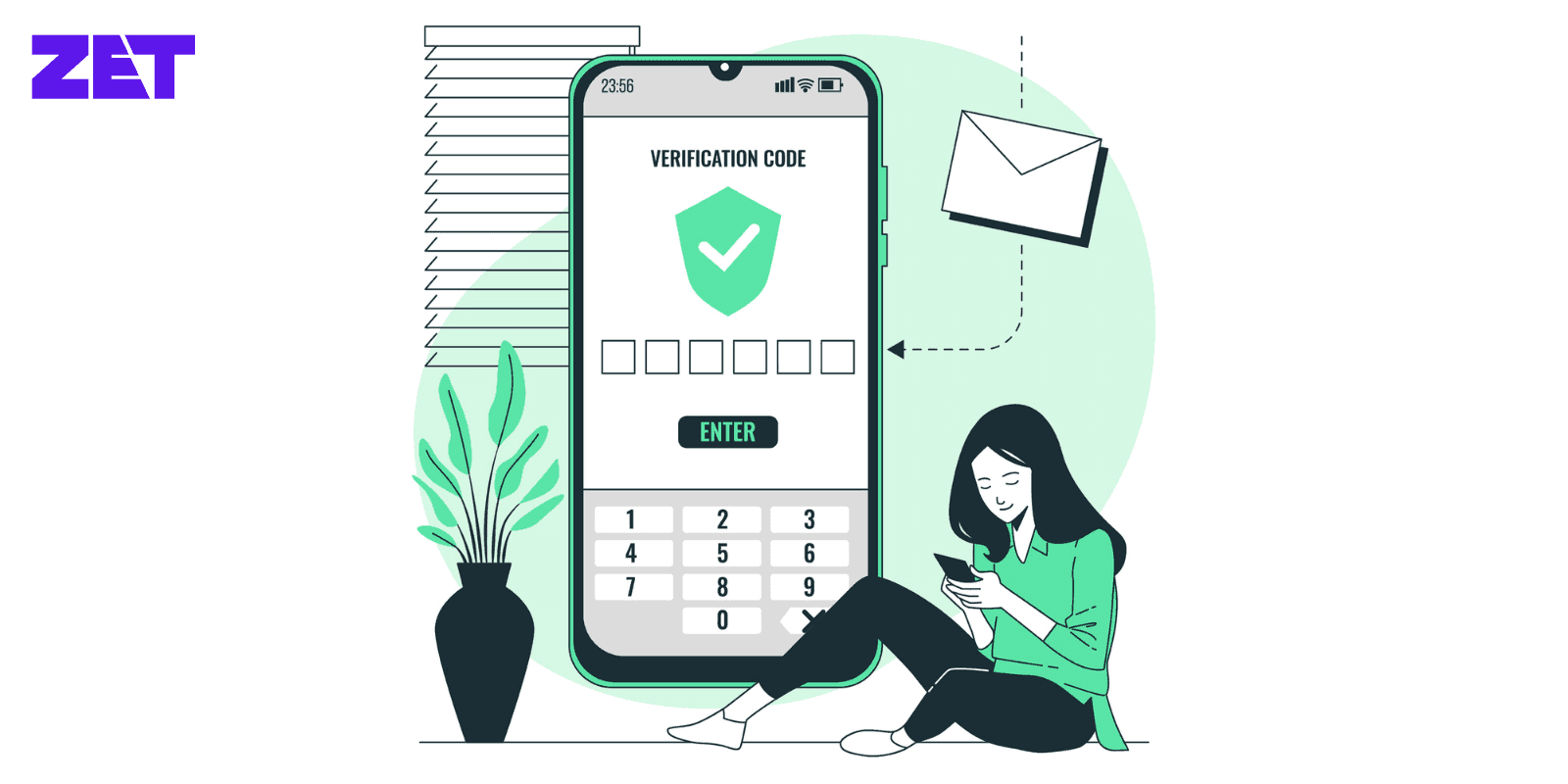
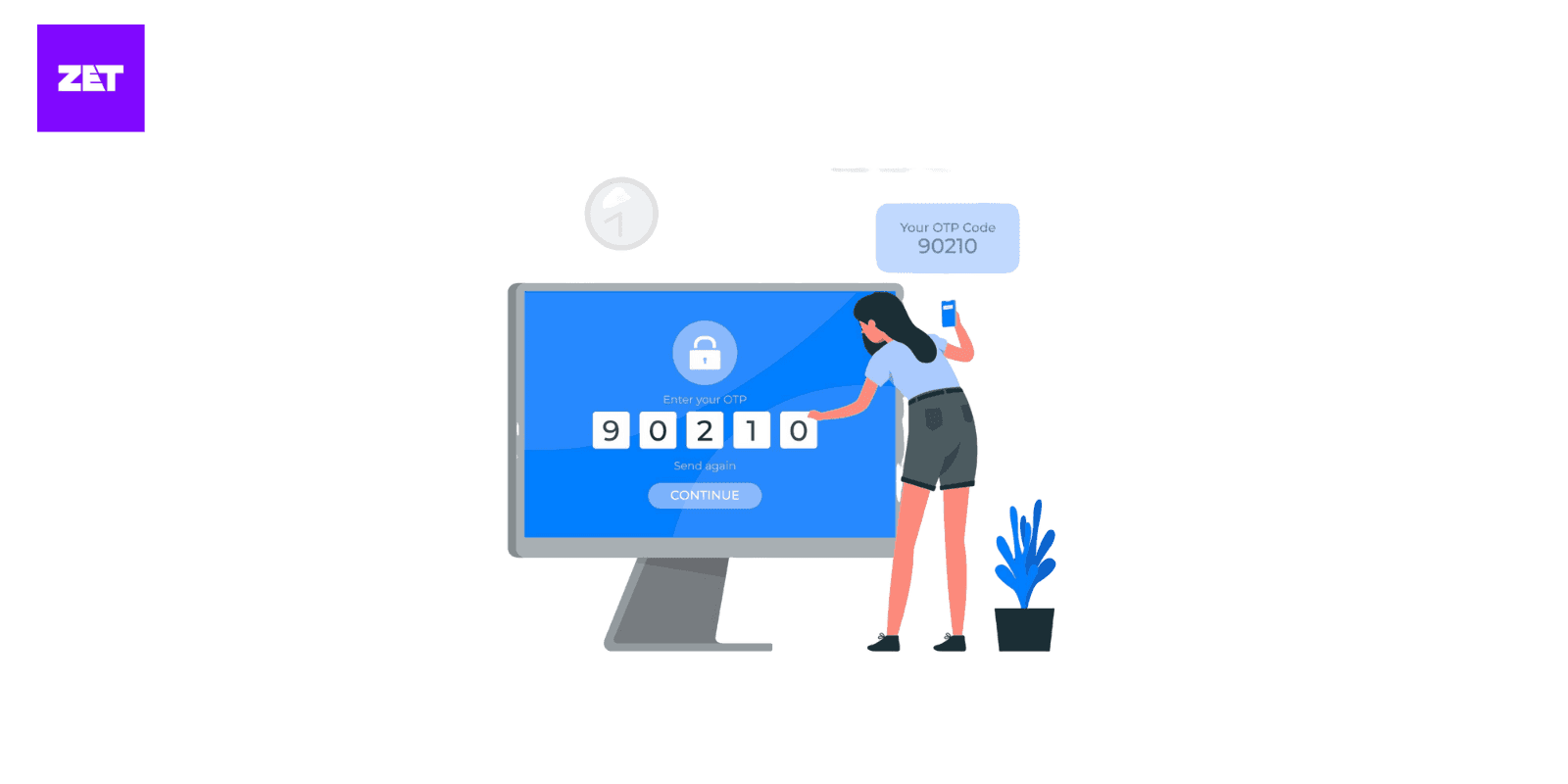
Authentication may request you to authenticate your identity using a double factor authentication scheme, i.e., the casual use of your past/existing UPI PIN or the short message service (OTP) sent on your mobile number registered with you.
Step 6: Enter the New UPI PIN
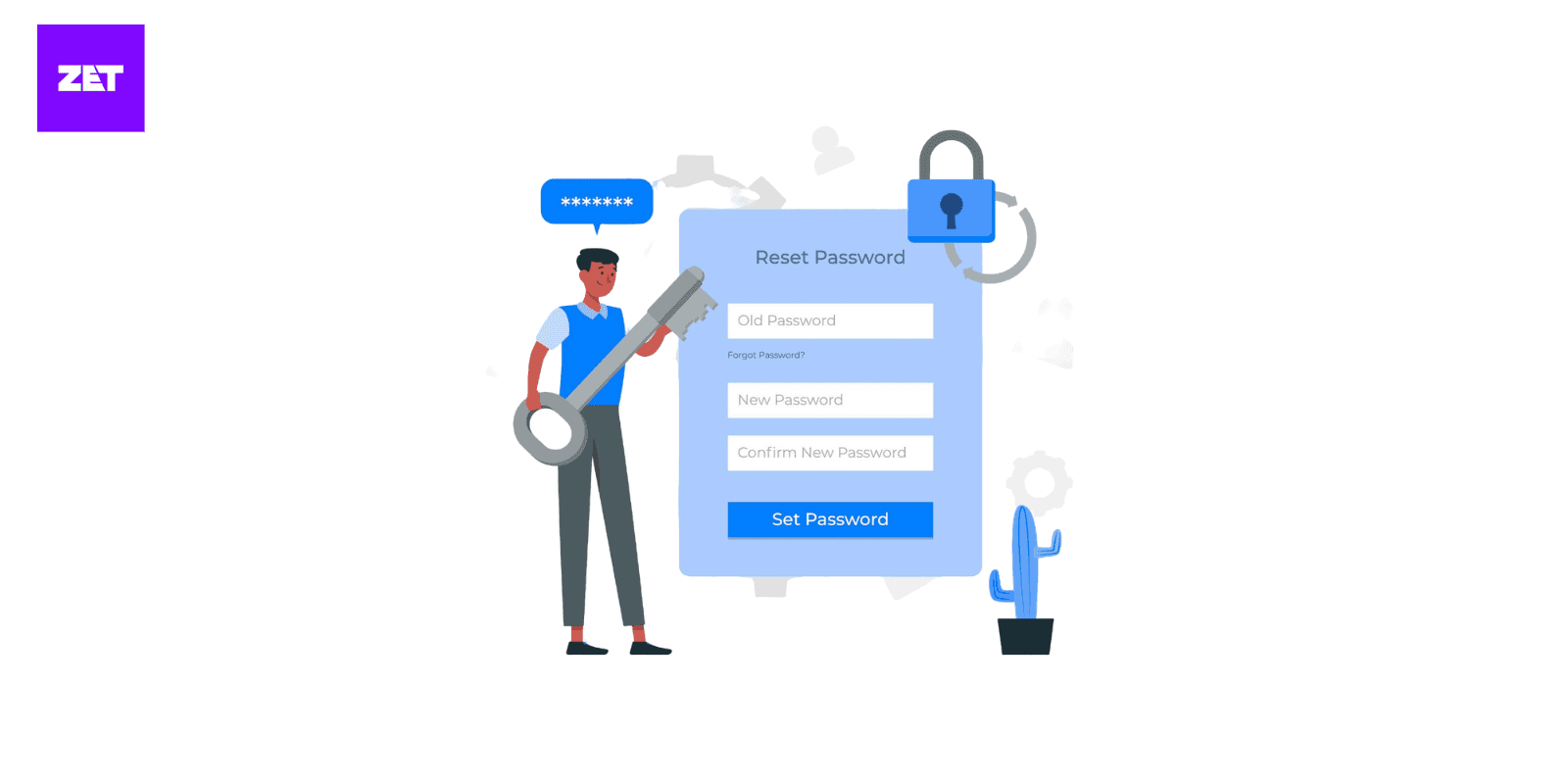
After your identity has been verified, a new UPI PIN will be asked to be keyed in. This PIN must be 4 and 6 digits.
Pen selection is critical to choose a PIN that is both strong and that you can easily remember. Do not use conventional pairs, such as 1234 or 0000, as they are easy to guess.
After entering the new PIN, tap on ‘Submit.’
Step 7: Re-enter the New UPI PIN for Confirmation
In order to confirm your new PIN, you will be requested to type it again. This ensures that you have entered the correct PIN.
After inputting the new PIN, tap 'Submit' again.
Step 8: Confirmation
After a successful PIN reset, a confirmation message is provided. The UPI PIN has been changed and will be used in future transactions.
Step 9: Test the New UPI PIN
In order for your newly generated UPI PIN to work, try a tiny transaction, e.g., specifically, transferring money to a contact or checking your balance. If the transaction is successful, you’ve successfully changed your UPI PIN.
Although, in general, the alternative for changing your UPI PIN is very easy, you may encounter many problems in the process. These are some of the most common issues that users have and what to do about them.
Read More:: How to Reset UPI PIN
1: If your UPI PIN has been lost, it can be quickly restored with the UPI GPay app as follows.
2: Open your bank accounts panel in the GPay app.
3: Choose the bank account you want to reset the PIN of.
4: Tap "Forgot UPI PIN" and enter a new UPI PIN as prompted.
5: You will be sent an OTP to your registered mobile number for identity verification, and a new PIN will be granted only after the OTP is verified.
Reissue incident code: When you do not receive the OTP on the registered mobile number, follow these steps.
Checking that the mobile number functions and has a network connection.
Check if you’ve entered the correct mobile number in your GPay settings.
If you’re unable to change your UPI PIN even after following all the steps, consider the following:.
Make sure your app is on the latest version.
Try to log out of your GPay and log out again.
If the problems continue, contact Google Pay support or get in touch with your bank for assistance.
Secure UPI PIN generation is the cornerstone of protecting your purse. Below are some proposals on how to choose an appropriate PIN.
Avoid simple patterns: Do not use PINs that are easy to guess, e.g., 1234, 0000, or 1111. Use a mix of digits: Do not use single digits like 1, 2, or 3, or four-digit combinations like 11, 22, 33, etc.
Don’t share your PIN: Keep your UPI PIN confidential. Never share it with anybody, regardless of how it seems—maybe an account from Google Pay or a bank account, for instance.
Change your PIN regularly: For added security, change your UPI PIN periodically.
Read More:: How to Reset UPI PIN on PhonePe
If your bank supports quick verification for a quick UPI PIN change, then it is typically possible to change your PIN almost instantly. Open the GPay app and navigate to the bank account section, then select Change or Reset UPI PIN. The verification of your identity will take place via a secure authentication step in which you receive an OTP (one-time password) via SMS to the registered mobile number on your bank account. After successful verification, you will then be able to create your new UPI PIN immediately, meaning that you will not need to wait to start using your new UPI PIN to make payments. This convenience and security feature for customers is designed to make it simple to quickly change your UPI PIN.
Google Pay has developed an easy way for customers to recover their UPI PIN if they forget it. You will go through the verification process to find out if you have an account with Google Pay using your registered mobile number. You will receive a unique code via SMS that you will then enter into the app in order to create a new UPI PIN for your account. The recovery method ensures that only the legitimate account holder can regain access to their account. Make sure to keep your registered mobile number active because you will only receive notifications about the recovery of your UPI PIN via SMS.
Your UPI PIN for GPay does not have a defined lifetime limitation on the number of times you may change it but your bank will put temporary restrictions on you for security. If you try to change your PIN with multiple attempts in quick succession or enter incorrect details too many times, then you will likely be temporarily blocked from making additional attempts. This is done to protect against unauthorized access and abuse. You will be able to try again once the temporary restriction period has passed. By being mindful of your true information and not performing multiple resets unnecessarily, you can help to avoid having your PIN temporarily blocked.
The PIN reset process has many opportunities for mistakes which can be caused by network problems, incorrect user input, or an interruption during the PIN verification process. To avoid most of these problems, ensure you are on a reliable high-speed internet connection and are using the correct information. You should also complete the entire process in one attempt without exiting the app halfway. All the latest versions of the GPay app will help to minimise the number of technical errors. If you have an error, waiting a little while before attempting again usually solves the problem.
UPI PIN updating of GPay is easy, and therefore, due to its significance in securing financial stability, it is imperative. No matter what the situation is, whether you lost your PIN or want to enhance security, following the steps outlined in this guide will make it possible to change the PIN conveniently and easily.
In any case, your UPI PIN is the lock code of an attempt to commit illicit transaction(s) from your bank account. Always keep it confidential and avoid using easy-to-guess PINs. If you update a UPI PIN in GPay, you now know how to do it. Keep on the lookout, and verify your security information on a regular basis.
Just by focusing and protecting your UPI PIN, you can still reach for the comfort and protection of Google Pay. Stay safe, and happy transacting!
Can one change the UPI PIN directly from the mobile app to the bank?
No, you can't directly change your GPay UPI PIN from your bank's mobile app. You can recover or reset your UPI PIN using the Google Pay app because the UPI PIN is a direct part of the Google Pay ecosystem and Google Pay security
What if I keep inputting the new UPI PIN wrong a couple of times?
If you enter an invalid new UPI PIN any number of times to update it, you may be temporarily locked out of any further variation of your PIN for security reasons. In such situations, please try again or reset your PIN if needed by choosing "Forgot UPI PIN" when necessary.
What should I do if I don’t receive an OTP while changing my UPI PIN?
If you fail to obtain an OTP when updating your UPI pin, please ensure that your mobile number is active and has a good network signal. Also, confirm that the mobile phone number stored in your bank account is the same mobile phone number stored in your account on Google Pay. It is also possible to fall back on a restarting of the device or to prompt for the OTP again.
Can I use the same UPI PIN in multiple banks in Google Pay?
No, the same UPI PIN can be used for other banks added to your Google Pay. However, if you need to set a unique PIN for each account, you can do it by navigating the guided flow for that specific account.
Is there a limit to how often I can change my GPay UPI PIN?
No, there is no fixed number of changes in the UPI PIN in GPay. You can modify it as many times as you want as long as the security of it is not high or you simply forgot your PIN. However, please always choose a secure PIN.
It is allowed to use the same UPI pin across UPI apps like PhonePe or Paytm.
Yes, the same UPI pin can be used to access other UPI-based applications such as Google Pay, PhonePe, Paytm, etc. Nevertheless, in case of greater security, it is suggested to implement app-specific unique pins when at least one of such applications is exploited.
It is also conditional on the factors in the following details about how the GPay UPI pin can be changed if GPay UPI is lost or stolen.
Yes, when your phone has been lost or stolen, you can still recover the UPI pin by unlocking Google Pay via a different phone. In particular, you are required to block your SIM card immediately through your mobile network operator, as well as alert your bank to block it so that further damage can be prevented.
Can I change my GPay UPI PIN instantly?
Most instances will allow for the immediate change of the PIN once you verify your identity.
Do I need my debit card to reset GPay UPI PIN?
Certain banks will need your debit card notation, while some permit verification solely through OTPs.
Will I get an SMS or OTP while changing UPI PIN on GPay?
An OTP will be sent to the mobile phone that is registered with your account as part of the verification process.
Are there any charges for changing GPay UPI PIN?
No, Google Pay does not impose charges to change or reset your UPI PIN.



Download the app from PlayStore